


Enhancing control and overview with locations and superusers

We welcome you back to our blog series, where we introduce you to the latest features within Smartplan. In our previous post, we gave you a brief introduction to the new features (superusers and the ability to assign employees to locations). This time, we’ll delve into various ways both you and your employees can gain more control and a better overview when using the new features in Smartplan.
Clear and distinct distribution of tasks
Until now, all admins on your Smartplan account have had the same permissions. This might have resulted in uncertainty about who made which changes on the account. With the introduction of our new usertype, the superuser, you can now avoid these uncertainties.
You have complete control over which permissions each superuser should have. Based on the requests we have received from our customers, we can say that there primarily are two ways in which you can distribute the superuser permissions:
The team-based approach
The locations you have created on your account might represent different departments in your company or perhaps different addresses where your stores are located. In this case, you probably have a team leader or store manager who is responsible for each of the locations. If you want that person to be responsible for all “admin” actions on the location, here’s what you should do:
- Go to Settings → Smartplan settings → Locations, and click on Assign employees and superusers next to the location you would like to edit.
- Find the employee you would like to be a superuser, assign him or her to the location (if it hasn’t already been done) and grant them all of the superusers permissions.
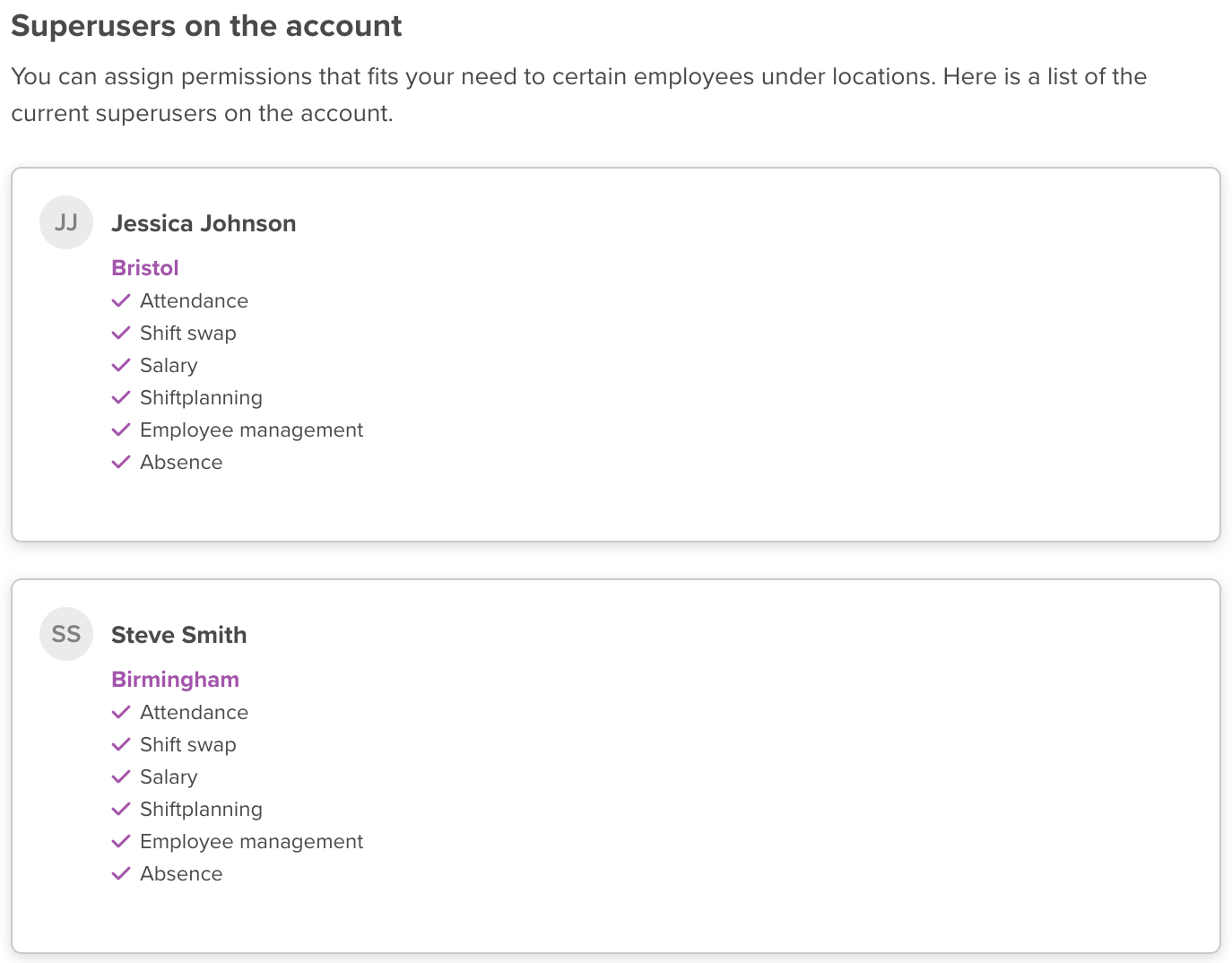
The employee can now handle everything from rotas to absences and salary. But only for that specific location.
The permission-based approach
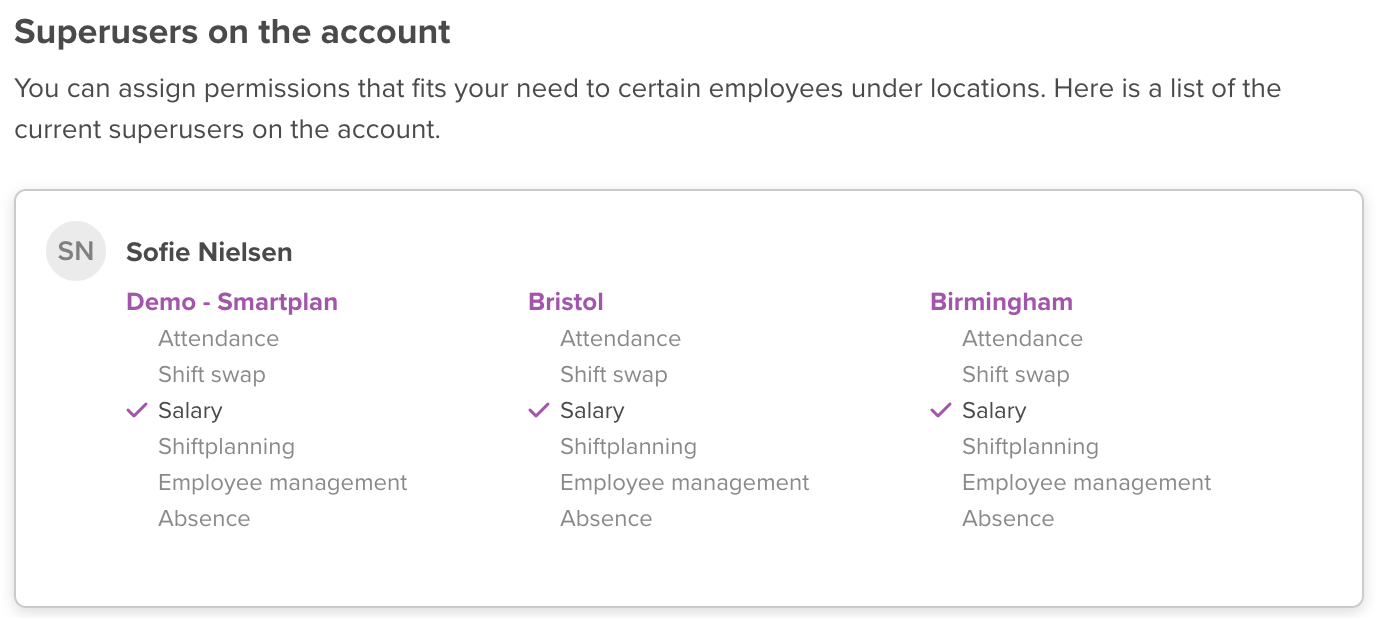
You also have the option to create a structure where superusers only have certain permissions. These permissions could apply to more than one location on your account. Perhaps you have an employee who should be able to make rotas on all of your locations, but he or she shouldn’t be able to access attendance or salary information? Or maybe your accountant has a user on your account? He or she should be able to export salary for all of your locations, but shouldn’t be able to manage other features in the system.
In this case, simply make sure that the employee has been assigned to all of the locations on your Smartplan account. Grant them superuser permissions on each location, but make sure that only the correct boxes have been checked. So if it’s for example your accountant, you simply check the box Manage and export salary:
A better overview in the planning process
Planning your rotas should be as easy as possible. We completely understand that it’s not something you want to spend a lot of time on. If you assign your employees to locations, you will now experience that it’s easier to get an overview of relevant employees when planning your rotas. Previously, all employees on the account have been shown in the staffing lists and in the overview in the right side of the planningtool. Going forward, you will only see the employees that have been assigned to the location you’re making a rota for.
This is especially useful if you have a lot of employees on your account. No more going through long lists of employees to find the correct ones. Hopefully, this will save you time when planning rotas.
Improve your employees’ overview
It is not only you or your admins or superusers who can achieve a better overview with the new update. Regular employees on the account can get a better overview as well. In the location settings, you can choose that the employees shouldn’t be able to view data from locations they are not assigned to:

If you check this box, the employees will therefore only be presented with data that is actually relevant for them. It makes it easier and faster for them to find their own rotas and shifts on the account. And you minimize the risk of them getting incorrect information.
If you would like to learn more about the update, take a look at these two articles from our help desk:
And then make sure to check in on our blog in the coming days. We’ll be sharing even more tips on how you can benefit from the update.
If you have any questions or doubts, please don’t hesitate to reach out to us. You can send an email to support@smartplanapp.com or reach out through the support button in the system.
Smartplan
Published 31 October 2023
Ready to try Smartplan?
Start your free 30-day trial today. No commitment, no credit card required.
Try Smartplan freeGet to know Smartplan
Everything you need for shift planning, time tracking and employee management — all in one place.