


A user-friendly shift planning system that can free your rota from Excel
Create your shift schedule with peace of mind. Get control of your staffing needs and easily keep track of employee requests, hours, and absences. Smartplan helps with the puzzle.
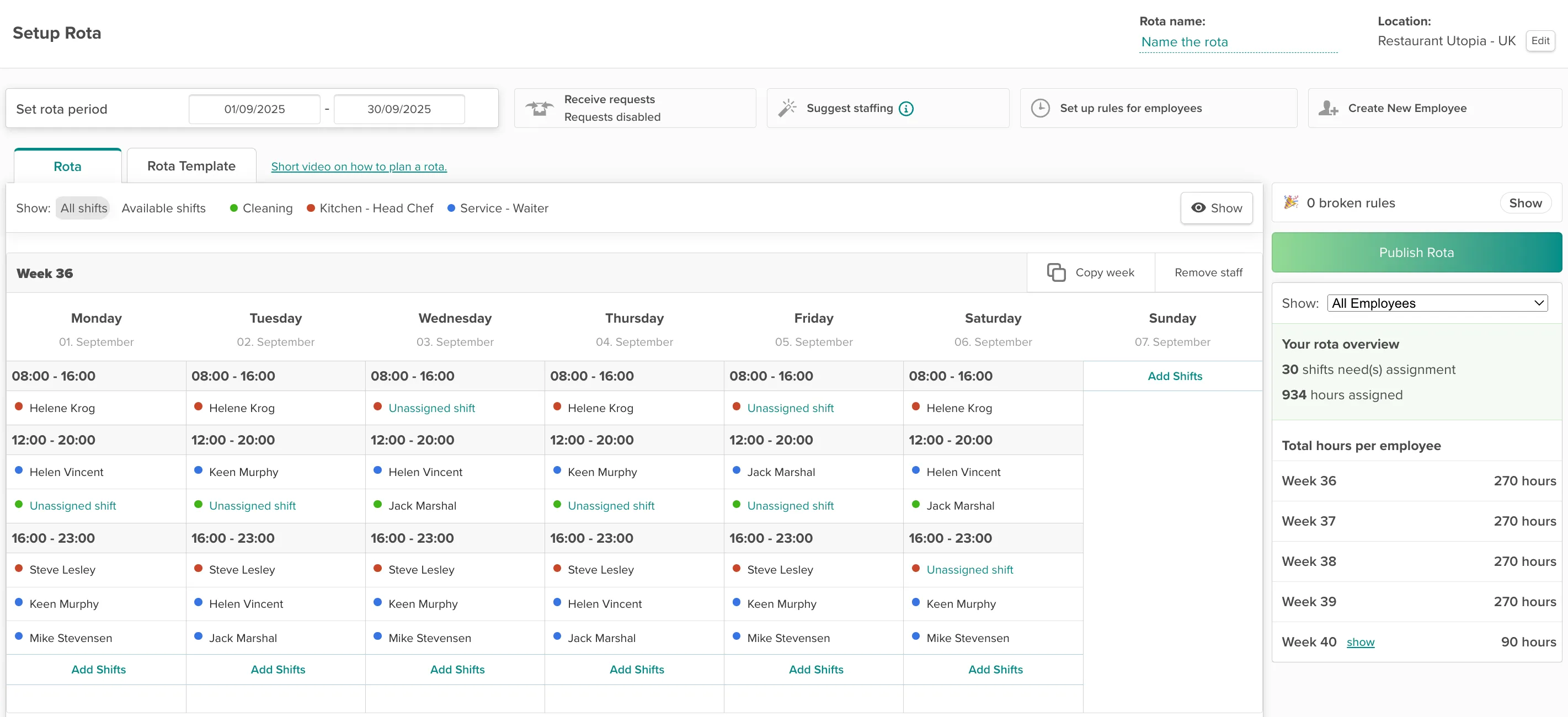
Fill in your staffing yourself and maintain full control over the planning...
If you prefer to control how employees are assigned to shifts yourself, we recommend creating your rota this way.
...Or set up your staffing needs and let Smartplan Assistant fill in the rota for you...
If you'd rather not spend time staffing the shifts in your rota, you can benefit from letting Smartplan Assistant do the work for you.
...Or add open shifts and let your employees take the shifts themselves
Set up open shifts and let your employees bid on them on a first-come, first-served basis.
"Shift planning has become much easier because you can use the template to copy rotas from month to month, so you don't have to sit and create everything manually."

Anna Grantland
/
Founder & Co-owner
Locked
It's this easy to create your rota in Smartplan
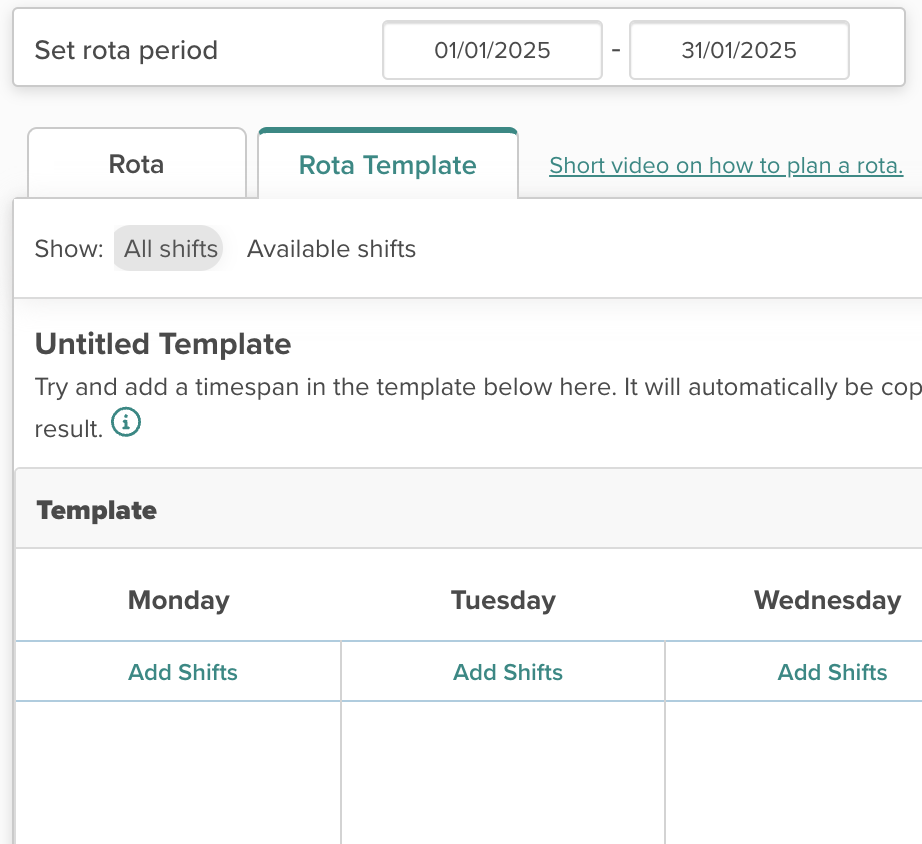
1. Choose a period and use a template
In Smartplan, all rotas are built in periods. This means you first need to choose which dates your rota should cover. Most of our customers typically create rotas for one or two months at a time, but the choice is entirely yours. If you have the same staffing needs in multiple rotas, you can benefit from setting up the rota in a template. You only need to add shifts to the template once. After that, you can use the template in as many rotas as you want.
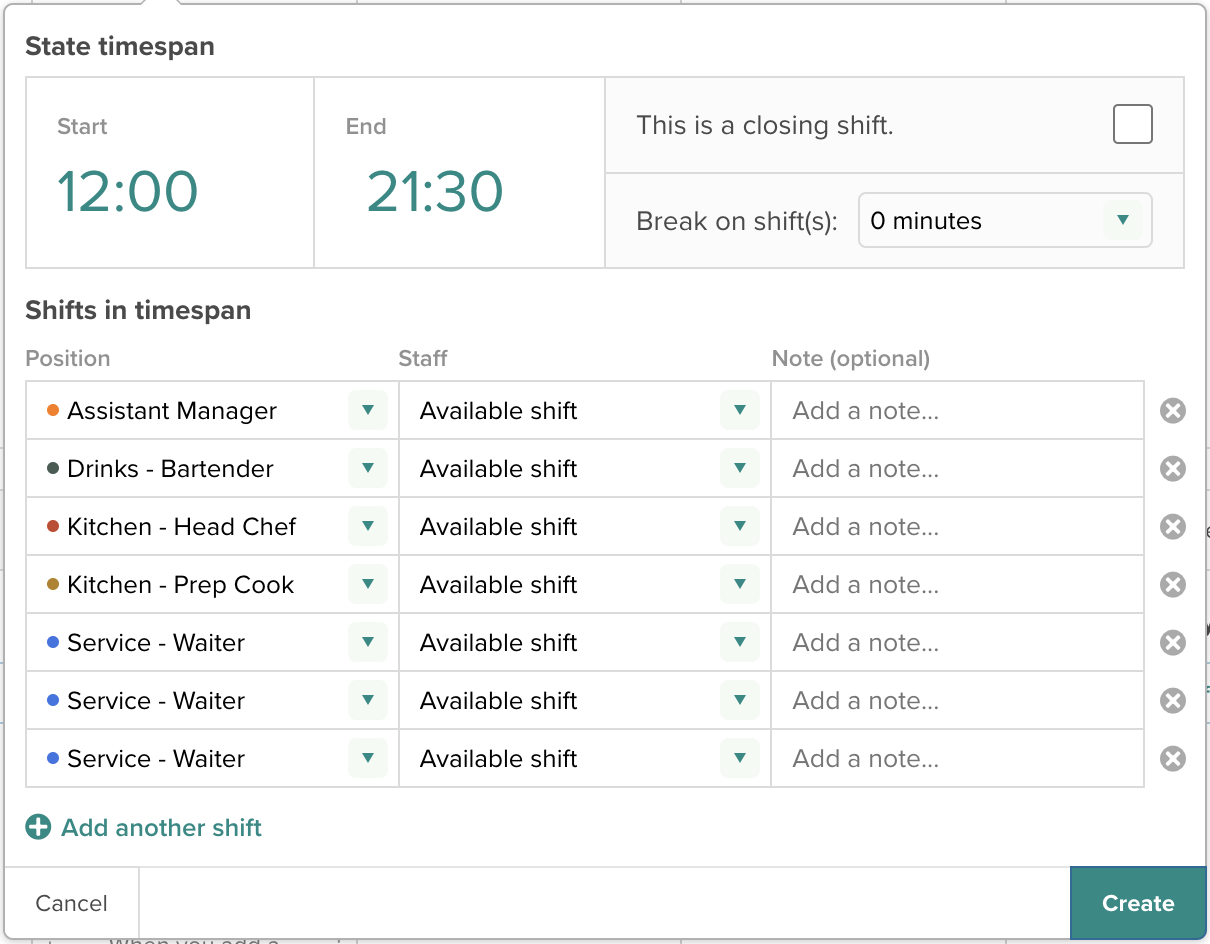
2. Plan according to employee skills
For each shift in the rota, you need to add a job type. The job type indicates what task is involved and what skills the employee needs to take the shift. This way, you can be sure the employee is capable of doing the work that needs to be done.
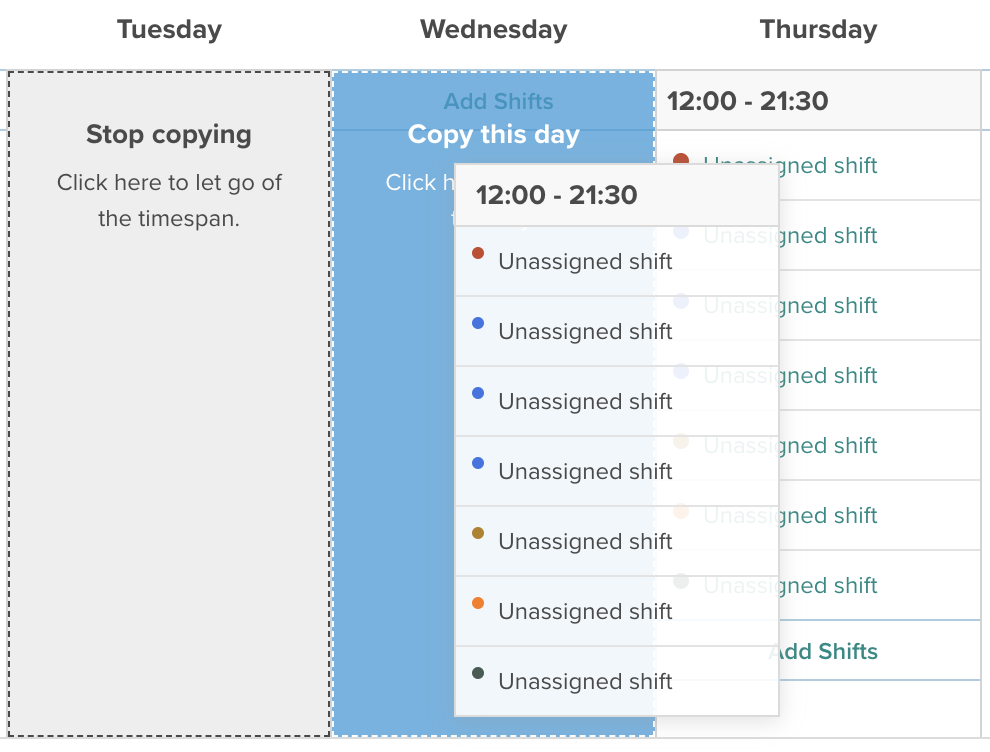
3. Copy shifts if your needs repeat
If you need the same staffing at multiple times in your rota, you can quickly fill in the rota using the copy function. In the planning tool, you can copy time slots, days, weeks, and employees. So it doesn't have to take long to fill in your rota.
4. Keep track of hours while planning
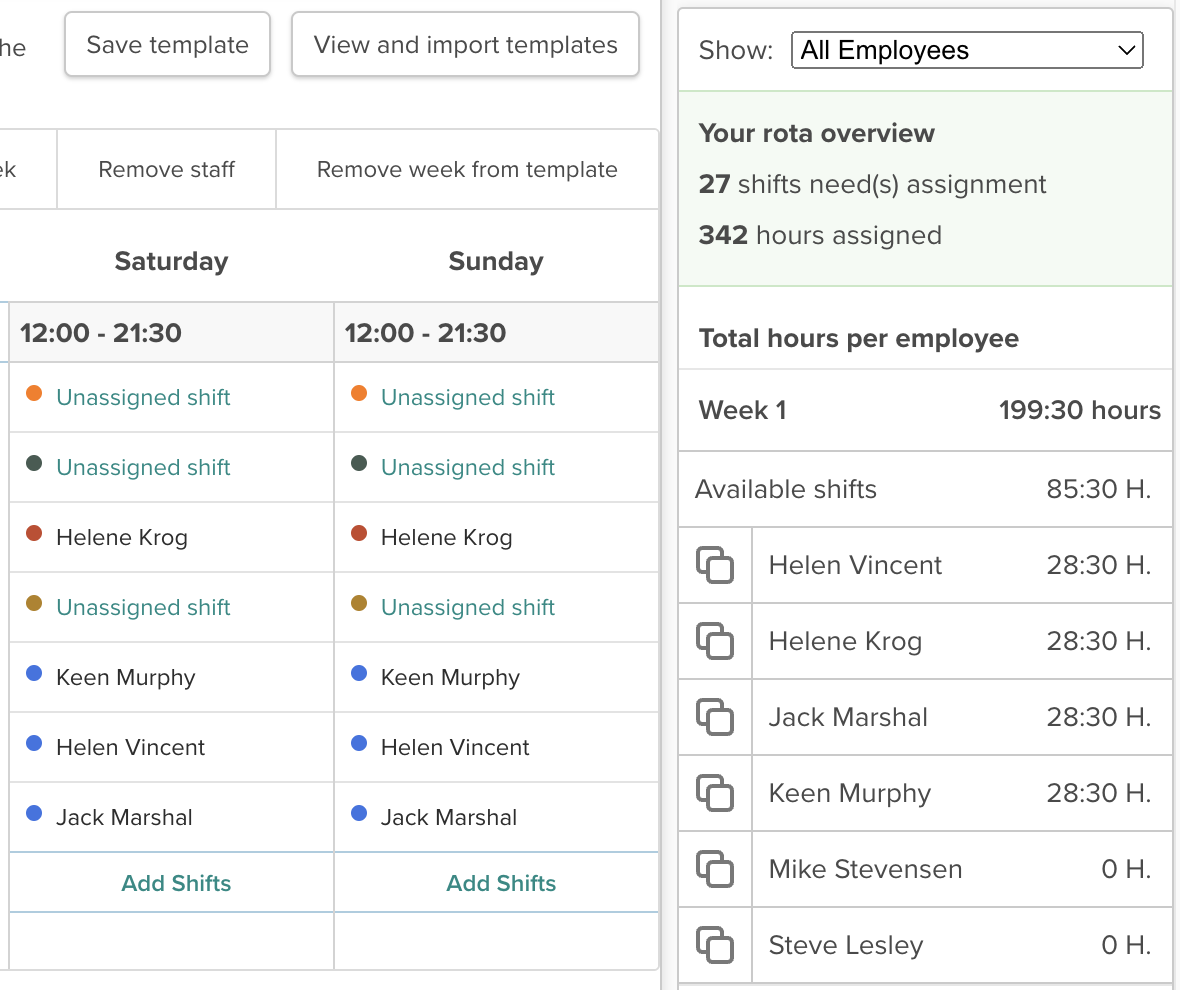
In the planning tool, you can always keep an eye on how many hours you've added to your rota and also how many hours individual employees have. In the list, simply choose whether you want to see all employees or a specific person. Then you can click on each week to see how the hours are distributed.
All these features are included in the planning tool
In the planning tool, we've gathered all the features you might need when creating your rotas online. You choose whether to use all of them or just selected features.
Choose period
All rotas in Smartplan are created in periods. You choose how long a period your rota should cover.
Reuse templates
If your staffing needs repeat, you can use a template. Then you can simply reuse the template next time you need to create a rota.
Create new employee
You can create employees directly in the planning tool and get started with planning right away.
Quick copying
In Smartplan, you can copy time slots, days, weeks, and employees. This way, you can fill in your rota with just a few clicks.
Complete hours overview
In the planning tool, you can keep track of employees' hours in the current rota. So you can always see if the hours are evenly distributed.
Filter
If you want a quick overview of all shifts with a specific job type, you can use the filter to highlight these in the rota.
Set up rules
By setting up rules for your employees' working hours, you can ensure these are followed while you plan.
Monitor rule violations
If your rules are broken, the Assistant will alert you. Then you can choose whether to change the shift or not.
Receive requests
You can open the rota for employee requests to ensure they can work in the time slots where you assign them shifts.
Suggest staffing
With a single click, you can have the Assistant suggest staffing for your rota. This saves you a lot of manual work.
Change location
If you create a rota under the wrong location on your account, you can quickly and easily change it directly in the planning tool.
Release the rota
As soon as you're done with the rota, you can release it to your employees. You can always take it back in the planning tool again.
"I was creating the rota yesterday for the end of the year. It took 25 minutes. It's easy to get an overview of who I have available. It just works. It just runs."

Rasmus Kroer
/
Operations Manager
Hantwerk
Sign up free and get started in 2 minutes
Read more about why Smartplan is right for you: